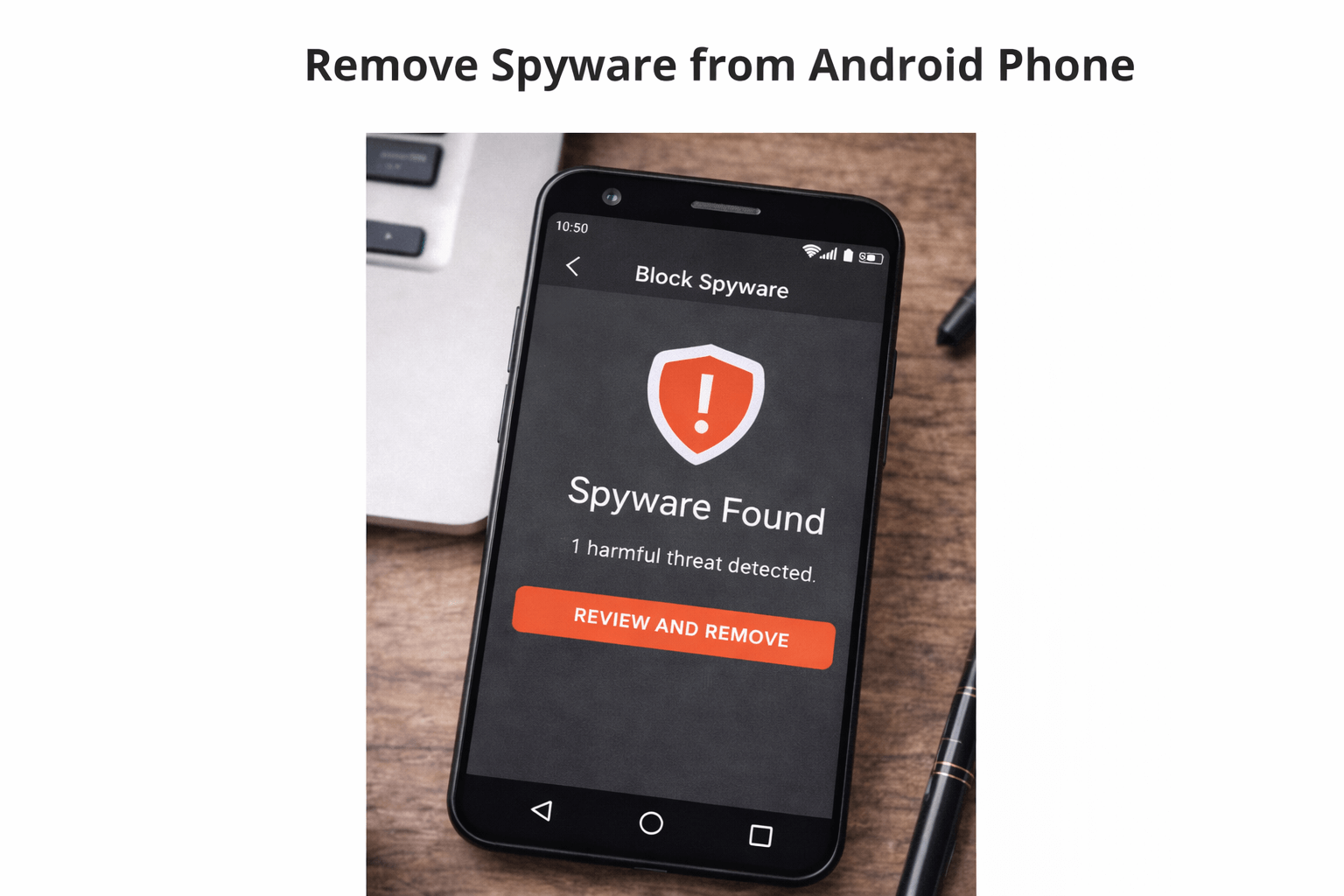
If you’re worried someone may be monitoring your device, learning the signs your Android phone has spyware is the first step to protecting your privacy. If you’re worried that someone may be monitoring your phone, it’s important to recognize the signs your Android phone has spyware. Spyware is malicious software designed to secretly monitor your device activity, including your messages, calls, location, and browsing history.
Many spyware apps run silently in the background, making them difficult to detect. However, your phone may show certain warning signs if spyware is installed.
In this guide, we’ll explain 10 common signs of spyware on Android phones and how you can detect and remove it before it compromises your privacy. Many users don’t realize the signs your Android phone has spyware until their device starts behaving strangely or their personal data becomes compromised.
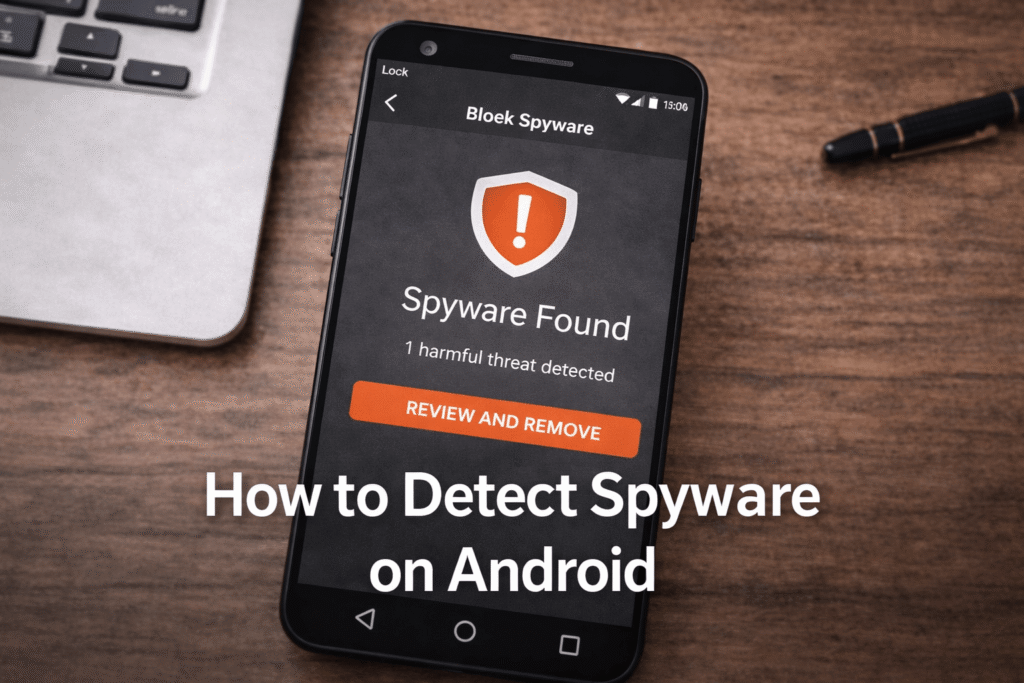
What Is Spyware on Android?
Spyware is a type of malicious software that secretly collects information from your device without your permission. Once installed, spyware can monitor:
- Text messages
- Phone calls
- GPS location
- Photos and videos
- Browsing history
- App activity
- Microphone recordings
Some spyware is disguised as legitimate apps, while others may be installed through malicious links or physical access to your phone. According to Google Android security guidelines, users should regularly review app permissions to prevent malicious activity. Understanding the signs your Android phone has spyware can help you quickly detect monitoring apps and remove them before they cause serious privacy issues.
Because spyware runs in the background, many users don’t realize their device is being monitored until noticeable symptoms appear. If spyware is already installed, follow our guide on how to remove spyware from Android.
10 Signs Your Android Phone Has Spyware
Here are the most common spyware warning signs on Android devices.
1. Unusual Battery Drain
If your phone’s battery suddenly drains faster than usual, spyware could be the cause.
Spyware constantly runs in the background to monitor your activity and send collected data to external servers. This continuous activity consumes battery power and may cause your phone to lose charge much quicker than normal.
If your battery usage suddenly spikes without installing new apps, it may be worth investigating.
2. Your Phone Is Overheating
Phones can heat up during heavy usage, but frequent overheating even when idle may indicate spyware.
Because spyware continuously runs background processes, it can cause your device’s processor to work harder, generating excess heat.
If your phone becomes warm even when you are not actively using it, suspicious apps may be running silently.
3. High Mobile Data Usage
Spyware typically sends collected data such as messages, browsing history, or location information to remote servers.
This process requires an internet connection, which can significantly increase your data usage.
You can check your Android data usage by going to:
Settings → Network & Internet → Data Usage
If you notice unusually high data consumption from unknown apps, spyware could be responsible.
4. Strange Apps You Don’t Remember Installing
One of the clearest signs of spyware is the presence of unfamiliar apps on your device.
Spyware developers often disguise malicious apps with generic names or system-like icons so users won’t notice them.
Check your installed apps list and look for:
- Apps you don’t recognize
- Apps without icons
- Apps with strange names
- Apps requesting excessive permissions
If you find suspicious apps, investigate them immediately.
5. Your Phone Is Running Slower Than Usual
Spyware consumes system resources like memory and processing power.
This can cause your phone to:
- Lag frequently
- Freeze occasionally
- Take longer to open apps
- Respond slowly to commands
If your Android device suddenly becomes slower without any clear reason, spyware may be running in the background.
6. Random Pop-Ups or Advertisements
Some spyware programs include adware features that display unwanted advertisements.
You may notice:
- Random pop-up ads
- Ads appearing outside browsers
- Ads appearing on your home screen
These intrusive advertisements can indicate malicious software installed on your device.
7. Microphone or Camera Activates Unexpectedly
Advanced spyware may secretly access your phone’s microphone or camera.
Some warning signs include:
- Microphone indicator appearing unexpectedly
- Camera activating without your input
- Strange sounds during calls
Modern Android versions display indicators when apps access your microphone or camera, so monitor these alerts carefully.
8. Unknown Messages or Calls
Spyware sometimes sends commands or data through SMS messages.
If you notice:
- Unknown messages sent from your phone
- Calls made without your knowledge
- Strange numbers in your call history
Your device may be compromised.
9. Security Settings Changing Automatically
Spyware may attempt to gain device administrator permissions to prevent removal.
Check if unfamiliar apps have device admin access:
Settings → Security → Device Admin Apps
If suspicious apps have administrator privileges, they could be spyware.
10. Security Apps Detect Suspicious Activity
If you install a reputable mobile security app, it may detect spyware automatically.
Many anti-spyware tools scan your device for:
- Hidden monitoring apps
- Suspicious permissions
- Malware activity
Using trusted security apps is one of the easiest ways to detect spyware on Android.
You can also explore our guide on best anti spyware apps for Android to find reliable tools that help detect hidden threats.
How to Confirm Spyware on Android
If you suspect spyware, take these steps to confirm it:
- Check installed apps for unknown programs
- Review app permissions carefully
- Monitor battery and data usage
- Scan your device using trusted security apps
- Look for apps with device administrator access
These checks can help identify suspicious activity quickly. If you notice several signs your Android phone has spyware, it’s important to run a security scan immediately.
How to Remove Spyware from Android
If you discover spyware on your device, removing it quickly is essential.
Common removal steps include:
- Uninstalling suspicious apps
- Removing device administrator permissions
- Scanning your phone with anti-spyware software
- Updating your Android system
- Performing a factory reset if necessary
For a guide, read our article on Best Anti Spyware Apps for Android
How to Prevent Spyware on Android
Prevention is the best way to protect your device.
Follow these security practices:
✔ Install apps only from the Google Play Store
✔ Avoid suspicious links and downloads
✔ Regularly update your Android software
✔ Review app permissions carefully
✔ Use reliable mobile security apps
Taking these precautions can significantly reduce the risk of spyware infections.
FAQ
Can spyware be installed on Android phones?
Yes. Spyware can be installed through malicious apps, phishing links, or physical access to your phone. Some spyware disguises itself as legitimate applications.
How do I know if my phone has spyware?
Common signs include unusual battery drain, high data usage, unknown apps, overheating, and unexpected microphone or camera activity.
Can anti-spyware apps detect hidden monitoring apps?
Yes. Trusted security apps can scan your device and detect hidden spyware or suspicious behavior.
Final Thoughts
Spyware can seriously compromise your privacy by secretly monitoring your personal information. Recognizing the signs your Android phone has spyware can help you detect threats early and protect your device.
If you notice suspicious activity on your phone, scan your device immediately and remove any malicious apps. Regular security checks and trusted anti-spyware tools can help keep your Android device safe from hidden monitoring software.
Leave a Reply